
Figma Updates June 2026: What's New
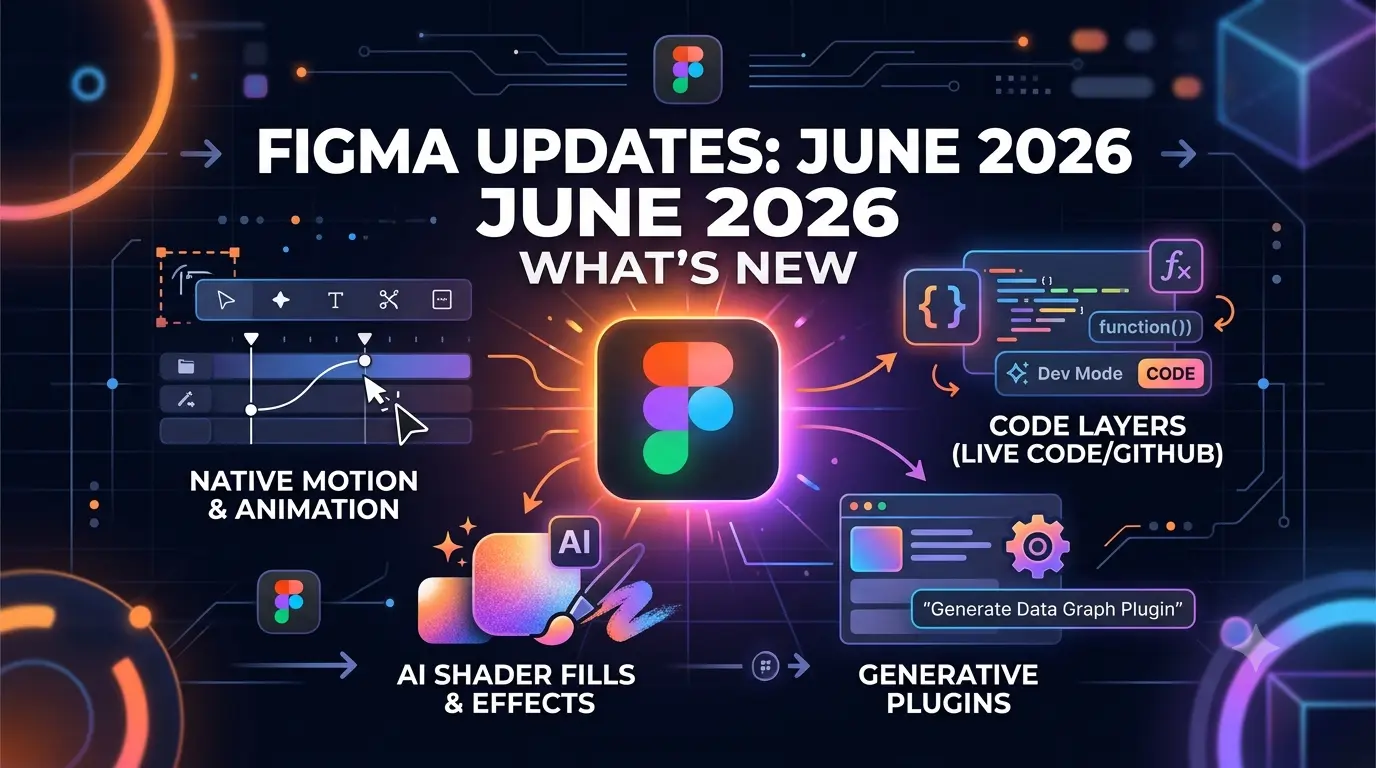
Here’s everything from Config 2026
We recently announced new features and capabilities that expand what you can do in Figma. Here’s everything we shared at Config 2026:
Create with new materials. Motion, depth, texture, and code — all on the canvas now. With these new features, designers can take their work to the next level and create more immersive and engaging experiences.
Motion
Motion allows you to create precise, expressive animations in the timeline or with the Figma agent. This feature enables you to build out reusable systems and ship dev-ready animations. To get started with motion, you can use the Figma agent to create animations from scratch or import existing animations from other design tools.
For example, you can use motion to create micro-interactions, such as hover effects or loading animations, that enhance the user experience. You can also use motion to create more complex animations, such as animated transitions or scrolling effects, that add depth and visual interest to your designs.
Learn more about motion and how to use it in your designs.
3D Transforms
3D transforms give your designs and images 3D dimension and depth. You can combine 3D transforms with motion to make objects move like they do in the real world. This feature is currently in beta, and you can sign up to try it out.
For instance, you can use 3D transforms to create 3D models or scenes that can be interacted with in real-time. You can also use 3D transforms to create immersive experiences, such as 3D games or simulations, that engage users and provide a more realistic experience.
Beta signup for 3D transforms is available now.
Shaders
Shaders describe what you want, and our agent will build it for you—shareable and ready to bring texture to your files. With shaders, you can create custom textures and effects that add depth and visual interest to your designs.
For example, you can use shaders to create custom textures, such as wood or metal, that can be applied to objects in your design. You can also use shaders to create custom effects, such as glow or shadow, that add depth and dimension to your designs.
Learn more about shaders and how to use them in your designs.
Code Layers
Code layers prompt interaction ideas, compare directions, and dial in the details—starting from designs or your codebase. This feature enables you to work more closely with developers and create designs that are more implementable.
For instance, you can use code layers to create interactive prototypes that can be tested and refined. You can also use code layers to create design systems that are more maintainable and scalable.
Beta signup for code layers is available now.
Create custom tools. The Figma agent connects to your tools, your files, and your team. With custom tools, you can automate repetitive tasks and workflows, and create more efficient design processes.
Agent Skills
Agent skills add skills, attachments, or connectors to help the Figma agent help you — more context for the agent, more control for you. With agent skills, you can customize the Figma agent to meet your specific needs and workflows.
For example, you can use agent skills to create custom plugins that automate specific tasks or workflows. You can also use agent skills to create custom integrations with other design tools or services.
Learn more about agent skills and how to use them in your designs.
Agent in FigJam and Slides
Agent in FigJam and Slides generates boards and diagrams in FigJam and drafts and bulk-edits decks in Slides. This feature enables you to work more efficiently and effectively in FigJam and Slides.
For instance, you can use the agent in FigJam to create custom boards and diagrams that can be used for brainstorming or planning. You can also use the agent in Slides to create custom presentations that can be used for pitches or meetings.
Beta signup for agent in FigJam and Slides is available now.
Generative Plugins
Generative plugins tell the Figma agent what you need, and let it generate custom tools for your creative work. With generative plugins, you can create custom tools and workflows that are tailored to your specific needs and goals.
For example, you can use generative plugins to create custom design systems that are tailored to your brand or style. You can also use generative plugins to create custom workflows that automate specific tasks or processes.
Learn more about generative plugins and how to use them in your designs.
Figma Weave Tools
Figma Weave tools get quality assets on repeat with tools that transform any visual — style transfer, perspective shifts, and more, without leaving Figma. With Figma Weave tools, you can create custom assets and designs that are consistent and high-quality.
For instance, you can use Figma Weave tools to create custom textures or patterns that can be applied to objects in your design. You can also use Figma Weave tools to create custom effects, such as shadow or glow, that add depth and dimension to your designs.
Learn more about Figma Weave tools and how to use them in your designs.
Weave Workflows
Weave workflows create and publish Weave workflows as a tool or a template file for others to use on the Figma Community. With Weave workflows, you can share your custom tools and workflows with others and collaborate more effectively.
For example, you can use Weave workflows to create custom design systems that can be shared with others. You can also use Weave workflows to create custom workflows that automate specific tasks or processes.
Try out Weave workflows and learn more about how to use them in your designs.
Explore everything we launched at Config in our recap blog post.
Search the web in the Figma design agent
Web search is now available in the Figma design agent. Pull in live web context, find best practices, and populate designs with real-world content instead of placeholders, all without leaving your file. To get started, users can prompt "search the web" in the chat or turn on web search in the plus menu.
For admins: Org admins on the Organization and Enterprise plans can manage web search access in settings. Web search is enabled by default in the organization, but individual users must toggle it on in chat.
Learn more about web search and access the agent beta in Figma Design.
AI credit usage API for Enterprise customers
Enterprise customers can now access AI credit usage data programmatically via the new AI usage credit API.
Use the new API endpoint to get daily credit consumption broken down by user, product (Design, Make, FigJam, etc), workspace, and team. This makes it easier to build internal reports and track adoption progress across your organization.
View our API documentation to get started.
Workspace-level Web Publishing for Make and Sites
Starting today, Org admins can now manage web publishing permissions for Make and Sites files at the workspace level:
- Set an organizational-level policy that applies to all files by default
- Optionally override that policy for files in specific workspaces
This means each workspace gets the right level of access without compromising the most security-conscious teams.
Learn more in the help center.
New in the Figma MCP server: Slides, uploaded fonts, and more
Four updates to the Figma MCP server are available today.
- use_figma in Figma Slides - External agents can now create and update slides presentations built with your templates.
- Uploaded local font support - The server now renders type using the fonts up, not web-safe approximations.
- Downloadable assets - Export JPG, SVG, PDF assets out of a Figma file with the new download_assets tool.
- Compatible now with Xcode - Bring your mobile designs directly into Xcode to create new flows and preview screens
From quickly refreshing a living deck to pulling in live data for a workshop, read how four Figmates are using our expanded MCP server.
Tab Groups: organize the way you work
Tab groups let you group, color, expand, and collapse tabs in the Figma desktop app. Stay organized without losing track of which file you’re looking for.
→ Label groups by project, theme, or workflow.
→ Color-code groups to keep them distinct at a glance.
→ Collapse and expand groups to stay focused as you work.
Available to all users on the desktop app.
Learn more in the help center.
Community profiles, redesigned.
Figma Community profiles just got a refresh, so you can better showcase who you are, your process, and your work.
- Add your role, experience, tech stack, and your own custom FigPal.
- Pin your top resources and add images and links to feature your best work.
- Connect your social channels to grow your following on Community.
Learn more about Community profiles.
Capture webpages as editable layers with the Chrome extension
You can now bring your websites onto the canvas as structured layers with the Figma Chrome extension. Copy the full page or selected elements, then paste into Figma to reference and riff on, no coding agent needed. The ability to generate designs using your design system is coming soon.
To get started, install the extension and sign in with your Figma account. This feature is currently in beta and available only on paid plans.
Learn more in the help center.
Video upload limit increase
We've increased the video upload limit from 100 MB to 300 MB across Figma products. Users on Professional, Organization, and Enterprise plans can upload videos up to 300 MB in size in Figma Design, FigJam, Slides, Sites, and Buzz.
Learn more in the help center.
Check designs: catch what's off, ship what's right
Check designs compares your designs against your design system, flags what's off, and suggests the correct fix in one click. Catch drift as you work, run a QA pass before handoff, and keep every file aligned to your design system with:
→ Variable and style suggestions flags hard-coded color, text, radius, and spacing values and replaces them with the correct design system token.
→ Accessibility suggestions flags color contrast violations and replaces them with WCAG 2.0 AA or AAA-compliant colors.
→ Library mismatch detection flags tokens and components from unsubscribed libraries.
→ Detached component detection flags components detached from their source library.
Check designs is available on Organization and Enterprise plans.
Learn more in the help center.
Pay-as-you-go AI credits on the Professional plan
New release coming soon.
Read more: <button>Read more</button>
Original link:
https://www.figma.com/blog/
Release date: Jun 3, 2026
Pay-as-you-go AI credits on the Professional plan
Admins on the Professional plan can now purchase additional AI credits on a pay-as-you-go basis. This option is helpful for teams with variable usage, and can be used on its own or paired with a subscription to manage occasional usage spikes. For instance, if a team has a project that requires a high amount of AI processing power for a short period, they can purchase additional credits to ensure they have enough resources to complete the project.
The pay-as-you-go model provides teams with the flexibility to scale their AI usage up or down as needed, without having to commit to a fixed subscription plan. This can be particularly useful for teams that have fluctuating workloads or that are still experimenting with AI-powered tools. By purchasing credits as needed, teams can avoid wasting resources on unused credits and ensure that they are only paying for what they use.
For more information on managing AI credits, including how to purchase additional credits and how to track usage, visit our help center. The help center provides detailed guides and tutorials on how to get the most out of AI credits, as well as troubleshooting tips and FAQs.
Read more about pay-as-you-go AI credits and how to get started <button>Read more</button> Figma Help Center
Plan smarter with more context in Make
Plan mode is a new opt-in mode that helps teams shape the direction of their projects before generation starts. Make takes a look at the project, asks a few clarifying questions, and drafts a plan that can be edited, refined, and approved before anything gets built. This feature is particularly useful for complex work, such as multi-section layouts, detailed specs, and design imports, where getting aligned upfront leads to noticeably better results.
For example, if a team is working on a large-scale website redesign, they can use plan mode to create a detailed plan that outlines the structure, content, and design elements of the site. This plan can then be reviewed and refined by stakeholders before the build process begins, ensuring that everyone is on the same page and that the final product meets the team's goals.
Plan mode can be turned on via the dropdown in the prompt box or the /plan command. Because plan mode does extra work upfront, it uses more AI credits than a standard build. However, this extra cost is worth it for the benefits it provides in terms of clarity, alignment, and overall quality of the final product. Teams can estimate the number of AI credits required for plan mode before committing to it, and can adjust their usage accordingly.
In addition to plan mode, Make also features web search and fetch capabilities, which allow teams to pull live context from the web mid-build. This feature enables teams to ground their builds in current content, ensuring that their designs are relevant, up-to-date, and effective. Tool-call approvals also let teams review and approve the content before it enters their session, providing an extra layer of quality control.
Queued messages are another key feature of Make, allowing teams to stack follow-up instructions while the tool is still generating. This feature enables teams to edit or delete messages before they commit, and they'll send automatically once the current build finishes. This streamlines the workflow and reduces the need for manual follow-up, saving teams time and effort.
Learn more about Make updates, including plan mode, web search and fetch, and queued messages, in the help center. The help center provides detailed guides, tutorials, and FAQs on how to get the most out of Make and its features.
Read more about Make and its features <button>Read more</button> Figma Make Help Center
Sharper controls for every slot
New slot settings in Figma allow teams to set guardrails and default behaviors on any slot to guide how components get used. This feature provides teams with more control over their design systems, enabling them to ensure consistency and accuracy across their designs.
For instance, teams can set minimum and maximum layers to define how many items a slot holds. This ensures that slots are used consistently and that designs are balanced and visually appealing. Teams can also only allow preferred instances to limit what goes in a slot, ensuring that only approved components are used in their designs.
In addition, teams can display an empty slot by default, so slots are visible on the canvas. This makes it easier for teams to identify and work with slots, and ensures that they are used consistently throughout the design. Teams can also set fill as default, so content fills the space automatically, saving time and effort.
Slots are generally available, and teams can learn more about this feature in the help center. The help center provides detailed guides and tutorials on how to use slots, as well as troubleshooting tips and FAQs.
Read more about slots and how to use them <button>Read more</button> Figma Slots Help Center
Visually edit your codebase with Make
Make now allows teams to connect to their local codebase and prompt contextually on specific elements, adjust properties through a Figma editing panel, or describe changes in chat — and an AI coding agent makes the corresponding code edits. This feature enables teams to visually edit their codebase, streamlining the development process and reducing the need for manual coding.
For example, teams can annotate elements, adjust spacing, and swap components on the live interface, and the AI coding agent will make the corresponding code changes. This feature also enables teams to use chat-driven edits, where they can describe changes in natural language, and the agent will handle the code.
Make also features Figma MCP integration, which allows teams to paste a frame URL or component link, and the agent will build with their real design system. This ensures that designs are accurate and consistent, and that teams can work efficiently and effectively.
In addition, Make features a branch and PR workflow, which enables teams to commit and open a PR from inside Make, without requiring a terminal. This streamlines the development process, saving teams time and effort. Make also features GitHub native support, which allows teams to natively integrate with GitHub, and other Git providers can be connected via SSH.
The setup process for Make is simple, and teams can get started quickly. Make will install dependencies, set up a dev server, and help teams start making changes to their product. To get access to Make, teams can join the waitlist at figma.com/join-waitlist-make/.
Read more about Make and its features <button>Read more</button> Figma Make Help Center
Bulk edit in Figma Buzz
Figma Buzz now allows teams to bulk edit and resize campaign assets at scale. Teams can upload a spreadsheet to create assets, and then multi-select cells in the table view to manage content and design properties like sizes and brand imagery across hundreds of variants at once.
This feature enables teams to work efficiently and effectively, saving time and effort. For instance, teams can select a single asset or a full set, pick from preset channel sizes or add their own, and output a full multi-channel campaign in one shot. This streamlines the workflow and ensures that teams can produce high-quality campaigns quickly and easily.
Learn more about bulk creation in Buzz, including how to upload spreadsheets, manage content and design properties, and output multi-channel campaigns. The help center provides detailed guides and tutorials on how to get the most out of Buzz and its features.
Read more about Buzz and its features <button>Read more</button> Figma Buzz Help Center
Do more with grid
Grid is now generally available, and makes it easier for teams to reorder columns and rows, auto-position items into empty cells, and auto-add or remove rows to fit. This feature enables teams to work more efficiently and effectively, saving time and effort.
For example, teams can drag column and row tracks directly into a new position, and content will automatically shift to fill gaps when items are deleted. This streamlines the workflow and ensures that teams can produce high-quality designs quickly and easily.
Automatic positioning is another key feature of grid, which enables teams to auto-position items into empty cells. This feature ensures that designs are balanced and visually appealing, and that teams can work efficiently and effectively.
Learn more about grid and its features, including how to reorder columns and rows, auto-position items, and auto-add or remove rows. The help center provides detailed guides and tutorials on how to get the most out of grid and its features.
Read more about grid and its features <button>Read more</button> Figma Grid Help Center
Chulbul Design is a premium web design agency that specializes in creating high-quality, custom websites for businesses and organizations. With a team of experienced designers and developers, Chulbul Design can help you create a website that meets your unique needs and goals.
Frequently Asked Questions
What is Figma and how does it work?
Figma is a cloud-based design tool that enables teams to create, collaborate, and prototype user interface designs. It works by allowing teams to create designs, share them with others, and collaborate in real-time.
How do I get started with Figma?
To get started with Figma, simply sign up for an account and start creating designs. You can also check out the help center for tutorials and guides on how to get the most out of Figma.
What is Make and how does it work?
Make is a feature of Figma that enables teams to visually edit their codebase. It works by allowing teams to connect to their local codebase, prompt contextually on specific elements, and adjust properties through a Figma editing panel.
How do I learn more about Figma and its features?
To learn more about Figma and its features, check out the help center, which provides detailed guides, tutorials, and FAQs on how to get the most out of Figma. You can also join the Figma community to connect with other designers and developers and learn from their experiences.