
Figma June 2026 Updates: AI Check Designs, MCP Server, Tab Groups & More
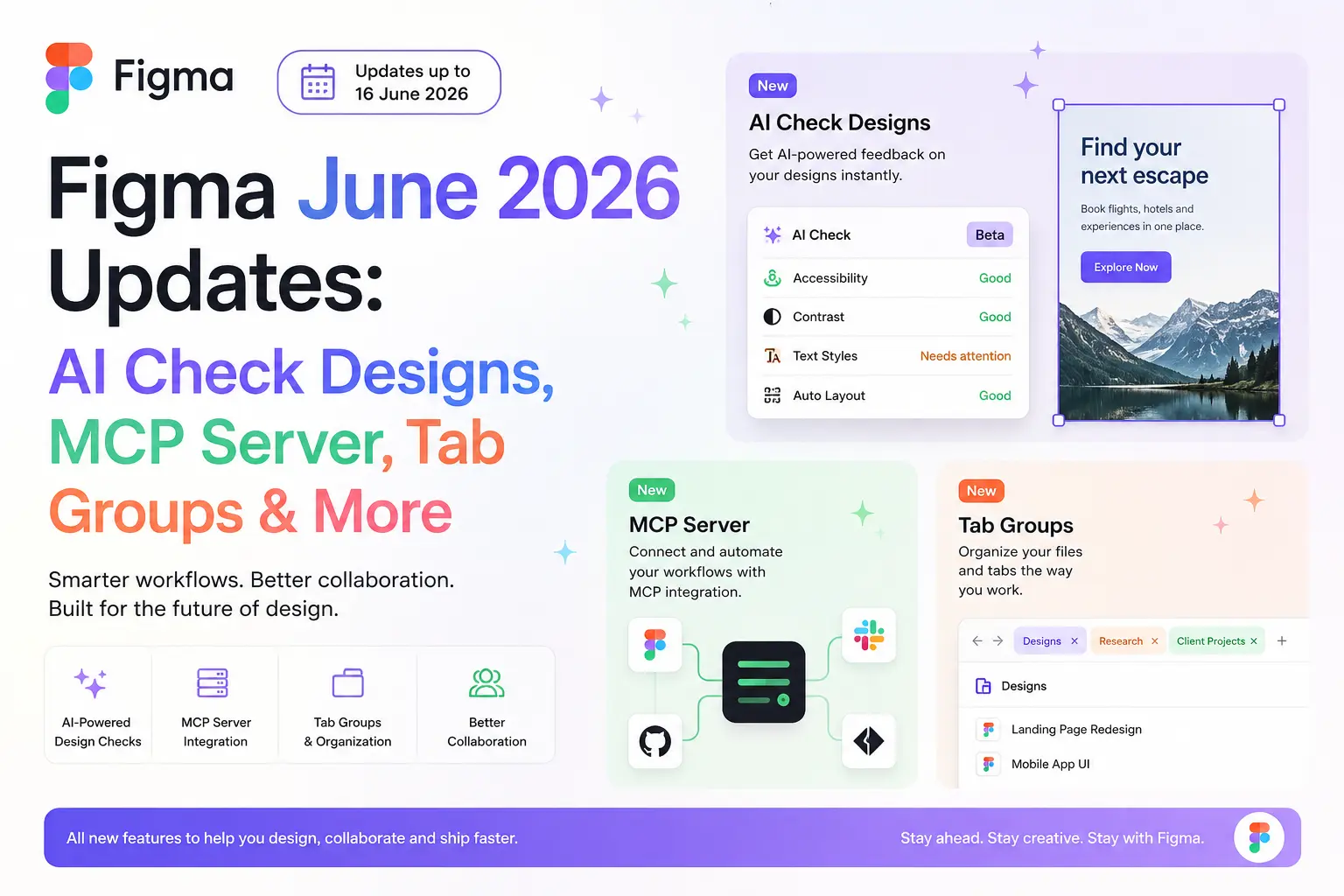
Figma's June 2026 Product Blitz: AI Gets Smarter, Design Systems Get Stricter
Figma has just released a significant product update wave, with new features and capabilities that touch nearly every part of the product ecosystem. Between June 1 and June 16, the company shipped updates that include a massive expansion of the MCP server, a new AI-powered design linting tool, and more.
The MCP Server Grows Up: Slides, Fonts, Downloadable Assets & Xcode
The biggest story of this release cycle is the continued maturation of the Figma MCP (Model Context Protocol) server. When it first launched, the server gave AI coding agents the ability to read Figma designs and pull them into code. Now, four new capabilities transform it into a bidirectional bridge between design and development environments.
Figma Slides Enters the MCP Ecosystem
External agents can now create and update slide presentations built with your templates. This isn't just about generating a single static slide—agents can build entire presentations, pull in live data, and refresh decks programmatically.
Uploaded Local Font Support
This update solves a persistent pain point for teams with custom brand typography. Previously, the MCP server used web-safe fallback fonts when rendering type, meaning what your AI agent saw wasn't always what your designers intended. Now, the server renders type using the fonts you've actually uploaded to Figma.
Downloadable Assets Tool
A new download_assets tool lets agents export JPG, SVG, and PDF assets directly from a Figma file. For teams building automated pipelines—CI/CD workflows that need to pull the latest icons or illustrations—this removes a manual step that previously required someone to open Figma and export assets by hand.
Xcode Compatibility
The server is now compatible with Xcode, Apple's integrated development environment. Mobile teams can bring their Figma designs directly into Xcode to create new flows and preview screens.
Tab Groups: Organize the Way You Work
Figma shipped Tab Groups for the desktop app—a quality-of-life improvement that power users have been requesting for years. The feature lets you group, color-code, expand, and collapse tabs in the Figma desktop app.
- Label groups by project, theme, or workflow
- Color-code groups to keep them visually distinct at a glance
- Collapse and expand groups to stay focused on your current task
Community Profiles, Redesigned
Figma rolled out a complete redesign of Community profiles, transforming them from a simple list of published resources into something that functions more like a designer's portfolio.
- Add your role, experience level, tech stack, and a custom FigPal avatar
- Pin your top resources and add images and links to feature your best work
- Connect your social channels to grow your following on Community
Capture Webpages as Editable Layers with the Chrome Extension
The new Figma Chrome extension solves a workflow that has historically required manual screenshots, third-party plugins, or coding agents. You can now capture a full webpage or select specific elements and paste them directly into Figma as structured, editable layers.
Check Designs: Catch What's Off, Ship What's Right
This is the release that deserves the most attention from design systems teams. Check designs is an AI-powered tool that compares your designs against your design system, flags what's off, and suggests the correct fix—applying it in a single click.
What It Catches
- Variable and Style Suggestions: Flags hard-coded color, text, radius, and spacing values and replaces them with the correct design system token.
- Accessibility Suggestions: Flags color contrast violations and replaces them with WCAG 2.0 AA or AAA-compliant alternatives.
- Library Mismatch Detection: Flags tokens and components from unsubscribed libraries—a common source of drift when designers accidentally pull from the wrong asset source.
- Detached Component Detection: Flags components that have been detached from their source library, giving design systems teams visibility into where their components are being modified in unauthorized ways.
Pay-As-You-Go AI Credits on the Professional Plan
Admins on the Professional plan can now purchase additional AI credits on a pay-as-you-go basis. This option is helpful for teams with variable usage patterns—a team might burn through credits during a sprint planning week and use almost nothing for the next two.
Plan Smarter with More Context in Figma Make
Figma Make, the company's AI-powered prototyping tool, received three significant updates designed to give designers more control and context during generation.
Plan Mode
Plan mode is a new opt-in workflow that pauses Make before generation and drafts a structured plan for your approval.
Web Search & Fetch
Make can now pull live context from the web mid-build. Search broadly or fetch a specific URL to ground builds in current, real-world content.
Queued Messages
You can now stack follow-up instructions while Make is still generating. Edit or delete queued messages before they commit, and they'll send automatically once the current build finishes.
Sharper Controls for Every Slot
Figma shipped new slot settings that give component authors precise guardrails and default behaviors for how slots—replaceable content areas within components—get used.
- Set minimum and maximum layers to define how many items a slot can hold
- Only allow preferred instances to restrict what content can go into a slot
- Display an empty slot by default so slots remain visible on the canvas even when unfilled
- Set fill as default so content automatically fills the available space
Video Upload Limit Increase: 100 MB → 300 MB
Figma quietly increased the video upload limit from 100 MB to 300 MB across all products—Figma Design, FigJam, Slides, Sites, and Buzz.
If you're weighing this for your own project, that's the kind of decision we help with at Chulbul Design.
Frequently Asked Questions
What is Figma's MCP server?
Figma's MCP (Model Context Protocol) server is a bidirectional bridge between design and development environments, allowing AI coding agents to read Figma designs and pull them into code.
What is Check designs in Figma?
Check designs is an AI-powered tool that compares your designs against your design system, flags what's off, and suggests the correct fix—applying it in a single click.
How do I use Tab Groups in Figma?
Tab Groups allow you to group, color-code, expand, and collapse tabs in the Figma desktop app. You can label groups by project, theme, or workflow, color-code groups to keep them visually distinct, and collapse and expand groups to stay focused on your current task.
What is Figma Make?
Figma Make is the company's AI-powered prototyping tool, which received three significant updates designed to give designers more control and context during generation.