
WordPress Website: A Complete Beginner's Guide for 2026
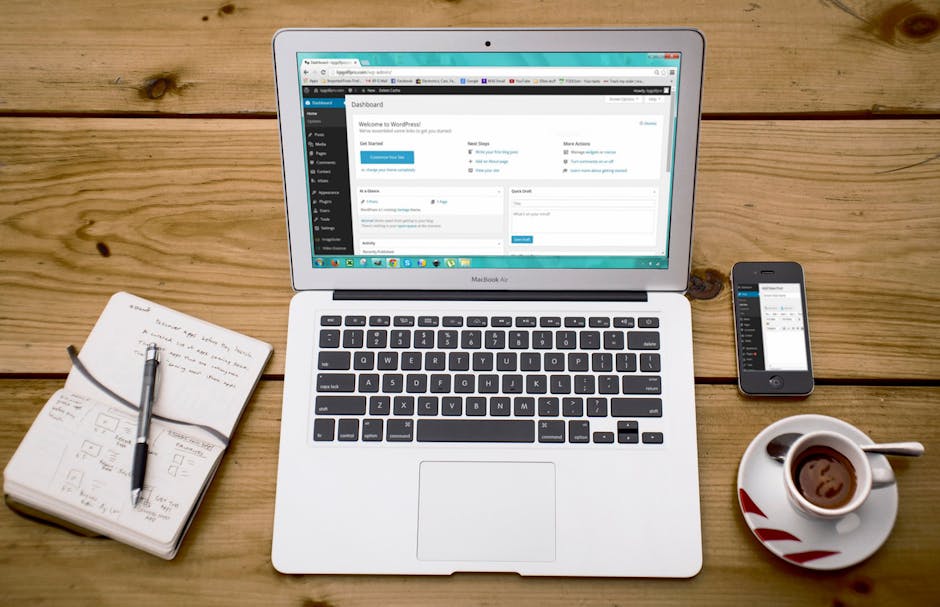
Over 43% of all websites on the internet run on WordPress. That's not a coincidence — it's the result of two decades of development, a massive global community, and a platform that genuinely works for almost every type of website imaginable. Whether you're a complete beginner or someone who's used WordPress a little but never really understood it, this guide covers everything you need to know.
What Actually is WordPress?
WordPress is free, open-source software you install on a web hosting account to run a website. It's a CMS — content management system — meaning it gives you a dashboard where you can create pages, write blog posts, upload images, and manage your site without touching code.
There are two versions. WordPress.com is hosted for you — easy to start but with limitations (ads on your site, can't install custom plugins on free plans). WordPress.org is the self-hosted version you download and install on your own hosting. For any serious business website, always go with WordPress.org. That's what our WordPress web design team builds on.
WordPress.com vs WordPress.org — Quick Version
WordPress.com: Easy to start, limited flexibility, shows ads on free plans, you can't fully customise it without paying for higher-tier plans.
WordPress.org: Complete control, install any theme or plugin, fully customisable, no ads. Requires your own hosting (Rs. 200–Rs. 2,000/month depending on quality).
For a business website, there's really only one choice.
How to Actually Set One Up
- Buy a domain name — keep it short, relevant, and easy to spell. Rs. 500–Rs. 1,500/year from providers like GoDaddy, Namecheap, or Bigrock.
- Get web hosting — Hostinger, SiteGround, and Bluehost offer one-click WordPress installs. For a business site, don't go with the cheapest shared hosting you can find.
- Install WordPress — your host's control panel will have a one-click installer. Takes 2 minutes.
- Choose a theme — Astra, GeneratePress, and Kadence are fast, lightweight, and well-supported. Don't pick a bloated theme just because it looks impressive in the demo.
- Install essential plugins — more on this below.
- Create your core pages — Home, About, Services, Contact. Add content. Launch.
Understanding Themes
Your theme controls how your site looks. There are thousands of free ones in the WordPress repository and thousands more premium ones on ThemeForest. When choosing, prioritise: does it load fast? Is it actively maintained? Does it look modern?
Don't pick a theme just because the demo looks beautiful. Heavy themes with 30 included page templates and a built-in slider will slow your site down significantly.
Understanding Plugins
Plugins add functionality. There are over 60,000 free ones. Some you absolutely need:
- SEO: Yoast SEO or Rank Math — don't skip this
- Security: Wordfence or iThemes Security
- Performance/Caching: WP Rocket (paid, worth it) or LiteSpeed Cache (free)
- E-commerce: WooCommerce if you're selling
- Forms: WPForms or Contact Form 7
- Backups: UpdraftPlus — set it to auto-backup to Google Drive weekly
One warning: don't install plugins just because they look useful. Every plugin adds load time and potential security vulnerability. Only install what you actually need.
WordPress and SEO
This is where WordPress genuinely shines compared to almost every other platform. Clean URL structure, easy content publishing, and best-in-class SEO plugins mean you can compete seriously in Google without being a technical expert. With Yoast or Rank Math, you can optimise every page for keywords, generate sitemaps, add schema markup, and manage meta tags — all from your dashboard.
Security Basics You Can't Skip
- Keep WordPress core, themes, and plugins updated — outdated software is the #1 cause of WordPress hacks
- Use a strong admin password (not "admin123") and enable two-factor authentication
- Install a security plugin with a firewall
- Make sure your site has an SSL certificate (HTTPS) — most hosts include this free
- Set up automated weekly backups
- Limit login attempts to block brute force attacks
When Should You Hire Someone?
For a basic informational site, a motivated non-technical person can manage WordPress themselves with a bit of learning. But for custom designs, e-commerce, or anything performance-critical, working with a professional WordPress web design and development team saves you months of frustration and delivers a dramatically better result.
We've rebuilt a lot of DIY WordPress sites. Not because the owners did a bad job trying — but because certain things (site architecture, performance optimisation, proper SEO setup) really do benefit from experience.
Want a WordPress site built properly from day one? Get in touch with Chulbul Design for a free quote. We build fast, beautiful, SEO-ready WordPress sites that you can manage yourself.
Frequently Asked Questions
What is the cost of creating a WordPress website?
The cost of creating a WordPress website can vary greatly, depending on your needs and goals. You can start with a free domain and hosting plan, but you may need to pay for premium themes, plugins, and custom development services. Overall, the cost can range from a few dollars per month to several thousand dollars, depending on the complexity of your website.
Do I need to know how to code to use WordPress?
While having some coding knowledge can be helpful, it's not necessary to know how to code to use WordPress. WordPress offers a user-friendly interface and a wide range of plugins and themes that can be easily installed and customized without any coding knowledge. However, if you want to make more advanced customizations, having some HTML, CSS, and PHP knowledge can be beneficial.
How do I choose the right WordPress theme for my website?
Choosing the right WordPress theme involves considering your website's purpose, target audience, and desired design. You should look for a theme that is responsive, secure, and compatible with your desired plugins and browsers. It's also a good idea to read reviews and try out demos before making a final decision, to ensure that the theme meets your needs and is easy to use.
Can I use WordPress for e-commerce websites?
Yes, WordPress can be used for e-commerce websites, thanks to plugins like WooCommerce and Easy Digital Downloads. These plugins offer a range of features, including payment gateways, shipping integrations, and inventory management, that can help you create a fully functional online store. With the right theme and plugins, WordPress can be a great platform for selling physical and digital products.
How do I keep my WordPress website secure and up-to-date?
To keep your WordPress website secure and up-to-date, you should regularly update your core software, themes, and plugins, and use strong passwords and secure protocols like HTTPS. You should also install security plugins, such as Wordfence or MalCare, to protect against malware and other threats. Additionally, backing up your website regularly can help you recover quickly in case of any issues or attacks.